
Martech
Growth Operations
Expand
Optimize performance and reduce technical debt. Ideal for efficiency and fine-tuning.


Webflow, a popular website builder, has gained widespread acclaim, with one of its standout features being the Editor Mode. This functionality revolutionizes website management, allowing owners to visually edit content without navigating the complexities of coding. In this comprehensive guide, we will delve into the myriad benefits of Webflow Editor Mode and explore how it can empower you in shaping your online presence.
Webflow Editor Mode stands out as a user-friendly interface, empowering website owners to seamlessly manage content without the need for coding knowledge. Its distinctive strength lies in its ability to handle intricate web designs, allowing users to effortlessly add and edit text, images, videos, and more without impacting the underlying code. This feature makes Webflow a versatile tool for customization, enabling website owners to experiment with different designs and layouts. Here are several advantages of using the Webflow Editor:
The Webflow editor is designed to be intuitive, catering to both novices and experienced users. Its accessibility makes website management a breeze, ensuring that users can navigate and utilize its features with ease.
Editing your website through Webflow is significantly faster than traditional methods. Real-time changes provide instant feedback, allowing you to fine-tune your website quickly and efficiently. This time-saving aspect enhances productivity and facilitates a more dynamic and responsive web development process.
Webflow Editor comes equipped with SEO-friendly features, including customizable meta tags and URL structures. These features contribute to enhancing your website's search engine ranking, ensuring that your content is optimized for discovery and visibility on popular search engines.
The simplicity of Webflow means you can make changes to your website without the need to hire a web designer or developer. This results in significant cost savings for website owners, as they can manage and customize their content independently, reducing reliance on external professionals.
Webflow's Editor Mode provides a robust toolset that allows for experimentation with different designs and layouts. The versatility offered empowers website owners to express their creativity and adapt their websites to changing preferences and trends in the digital landscape.
The real-time editing capabilities of Webflow Editor Mode provide instant feedback as you make changes. This immediate responsiveness allows for quick adjustments and a more iterative and agile approach to website management.
Webflow's collaborative features enable multiple team members to work on the same project simultaneously. This enhances workflow efficiency and facilitates seamless collaboration among team members, ensuring that everyone can contribute to the website's development in real-time.
Webflow Editor allows for easy customization of various elements, providing control over the look and feel of your website. This accessibility ensures that users can tailor their websites to meet specific branding and design requirements without relying on complex coding procedures.
In summary, Webflow Editor Mode offers a powerful set of features that not only simplify website management but also provide a range of benefits, from user-friendly design to cost efficiency and enhanced SEO capabilities.
Embarking on the journey of website creation in Webflow involves understanding the distinctive roles of Webflow Editor and Webflow Designer. Each tool serves a unique purpose, contributing to the holistic process of building and managing a website. Let's delve into the specific strengths and functionalities of Webflow Editor and Webflow Designer.
Webflow Editor is tailored for content management, allowing users to update content effortlessly without diving into design intricacies. Its intuitive interface ensures that individuals, regardless of design or development expertise, can contribute to content updates.
Edits in Webflow Editor reflect in real-time, offering instant feedback and facilitating quick adjustments to website content. The collaborative editing feature allows multiple team members to work simultaneously, enhancing teamwork in content creation.
Webflow Editor empowers users to manage page settings like password protection, SEO elements, and Open Graph settings directly within the edit mode. It streamlines the publishing process, enabling users to publish changes directly, whether for individual Collection items or entire domains.
Webflow Designer is the designated tool for structural, style, and element settings changes. Designers use this platform to customize layouts, ensuring a visually unique and appealing design for the website.
In Webflow Designer, users can create and edit main components and component instances, ensuring consistency across the website. The tool also facilitates the addition of interactive elements, animations, and intricate design features to enhance user experience.
Webflow Designer serves as the hub for configuring CMS settings, creating new CMS Collections, and defining the structure of dynamic content on the website. Designers have the flexibility to seamlessly integrate custom code and elements directly within the Designer interface.
In summary, Webflow Editor and Webflow Designer play complementary roles in the website creation process. Webflow Editor excels in content management, real-time editing, and efficient publishing, while Webflow Designer is the powerhouse for design, layout customization, and CMS configuration. The strategic use of both tools ensures a comprehensive and efficient approach to building and maintaining a stunning and functional website in Webflow.
Gaining entry to Webflow's powerful Editor is a straightforward process, but the method depends on your role within the Workspace.
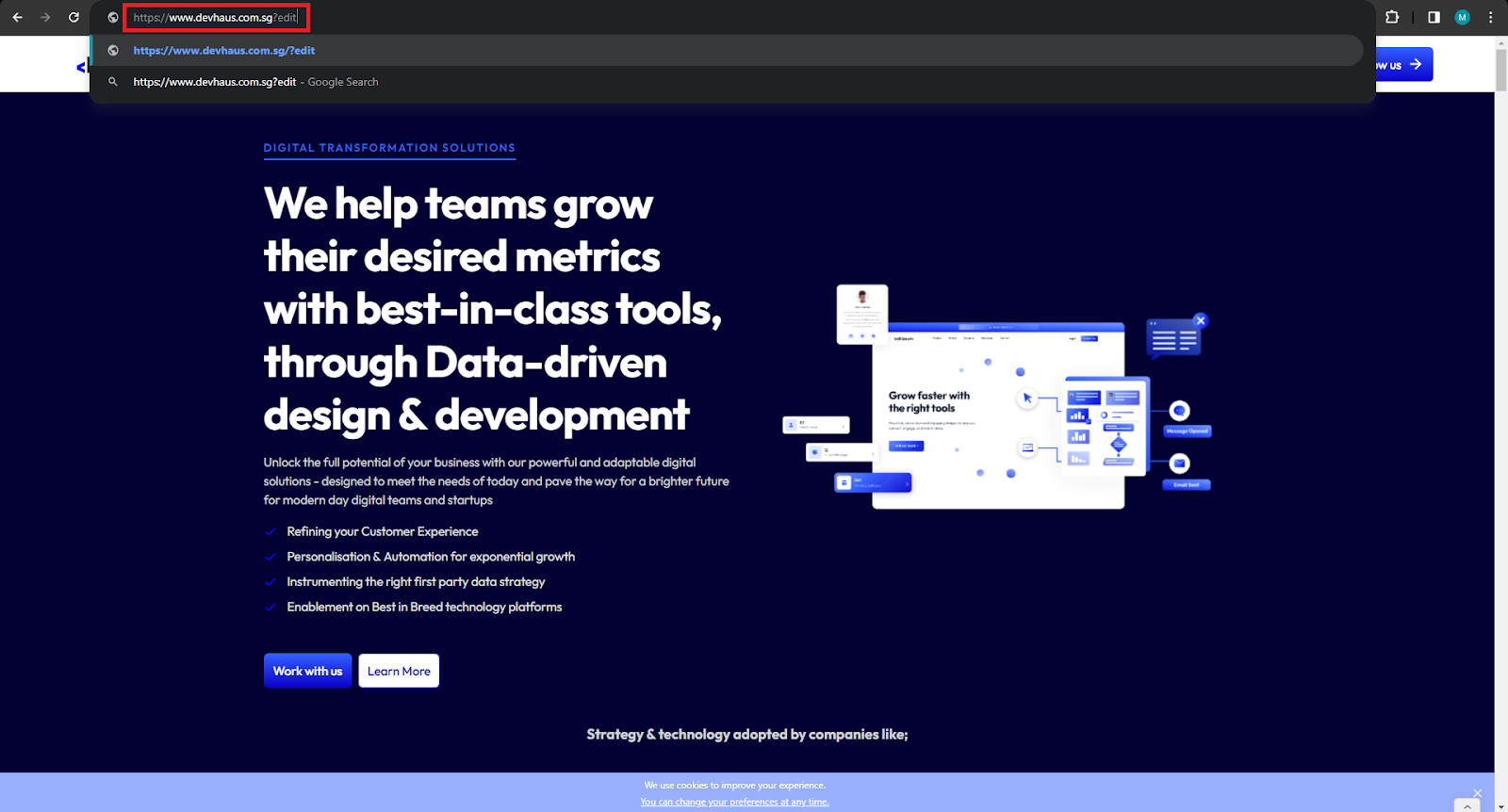
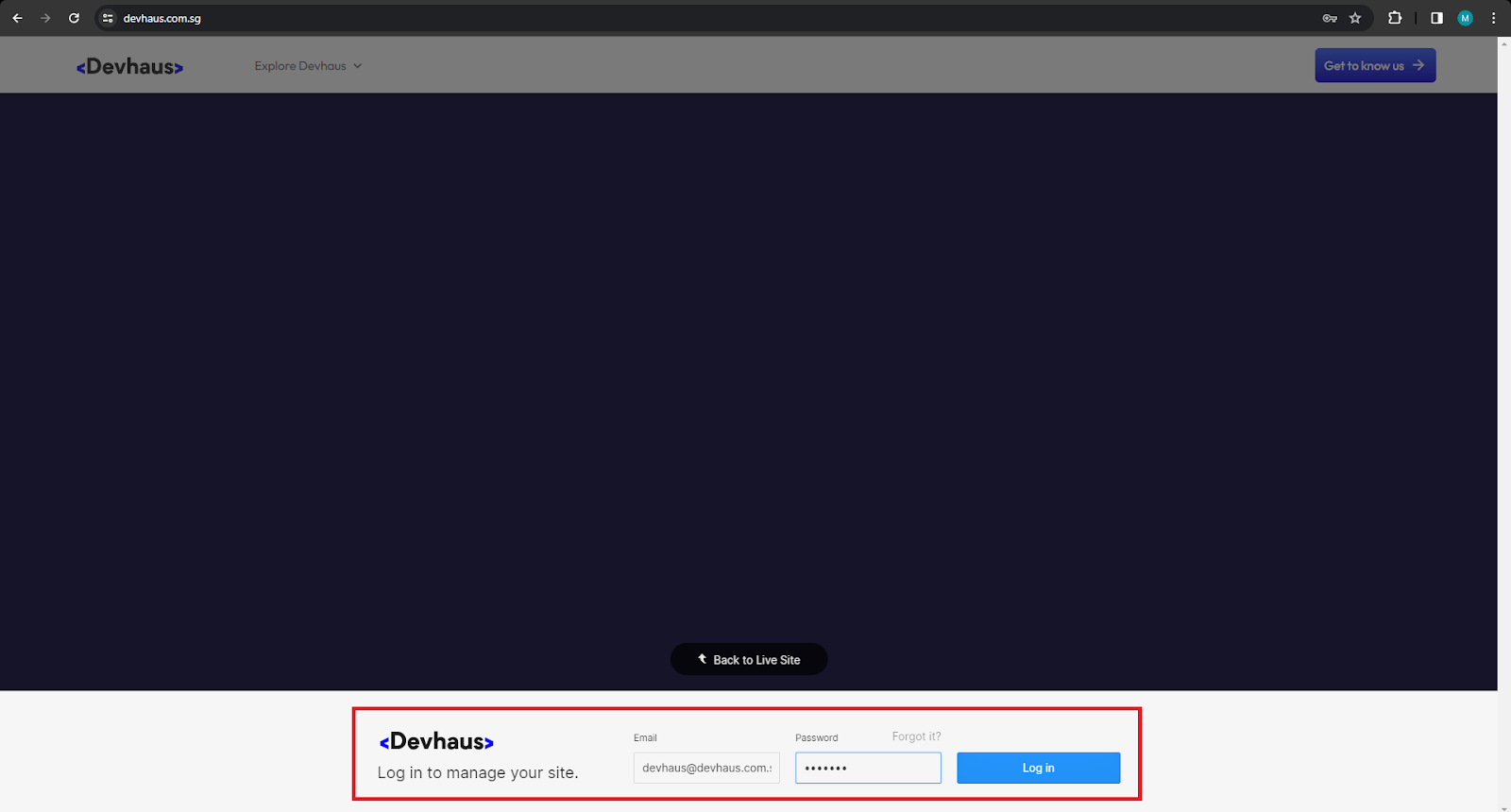
Roles with "Can Edit": If you have a role that permits editing (excluding Commenters), accessing edit mode is as simple as going to the page you want to edit and then just follow these steps:
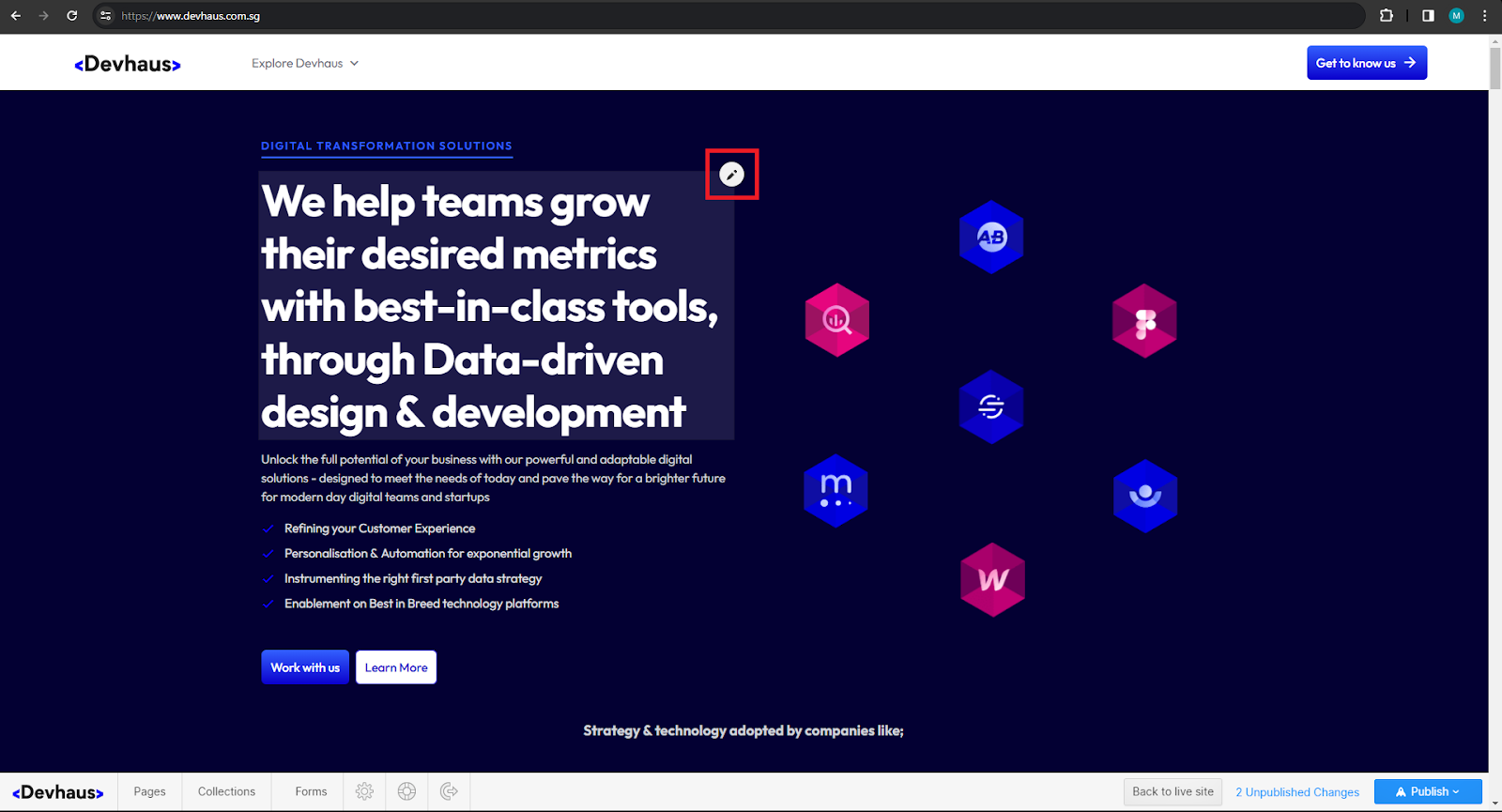
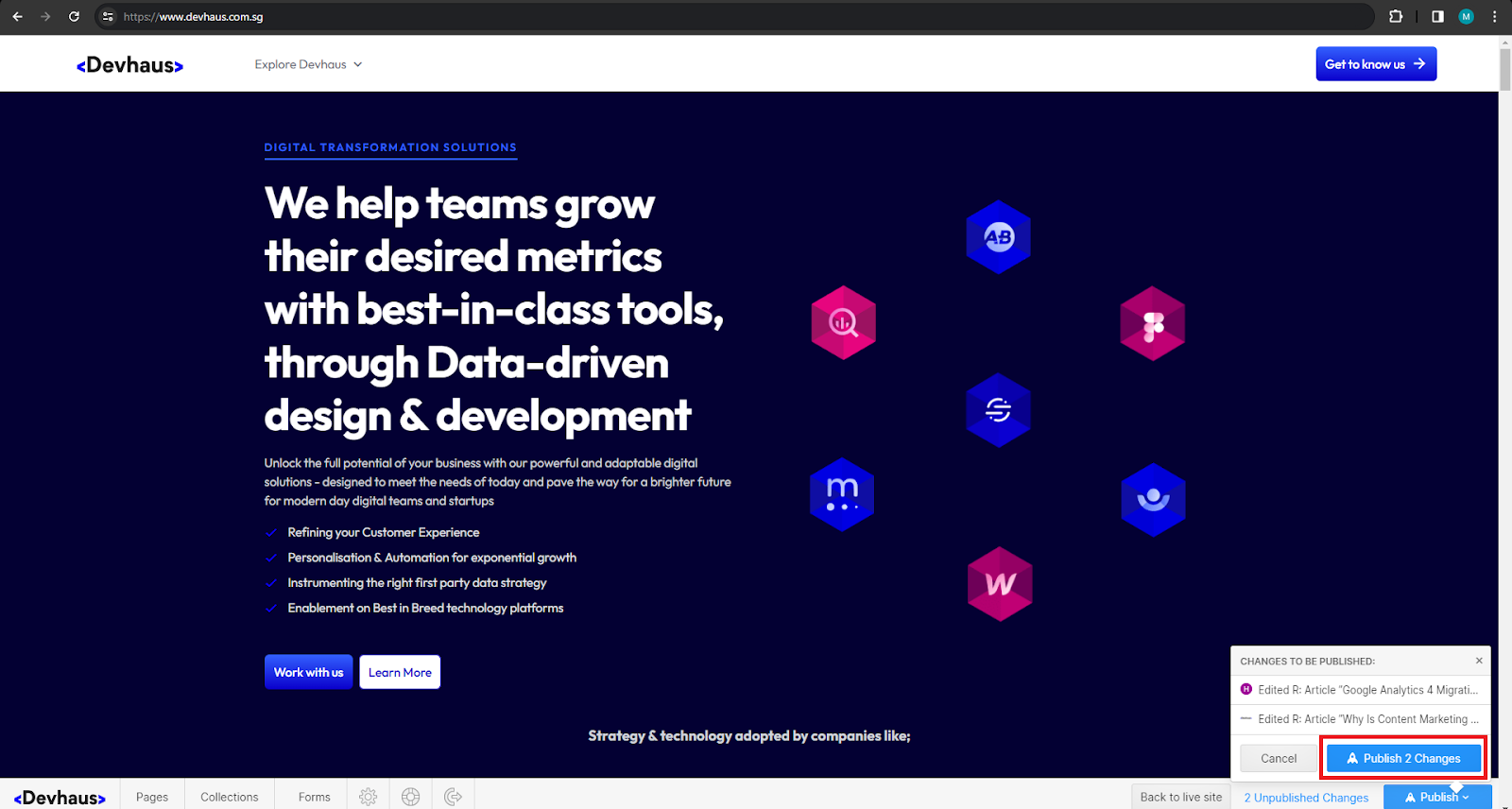
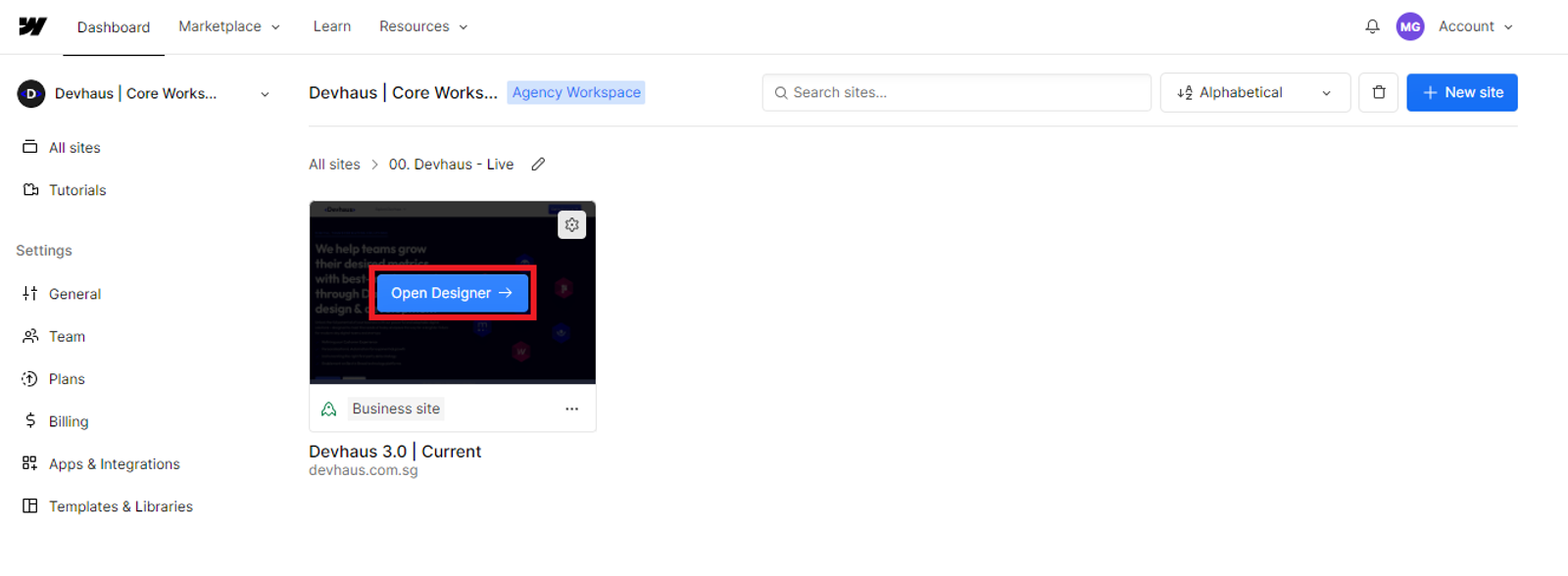
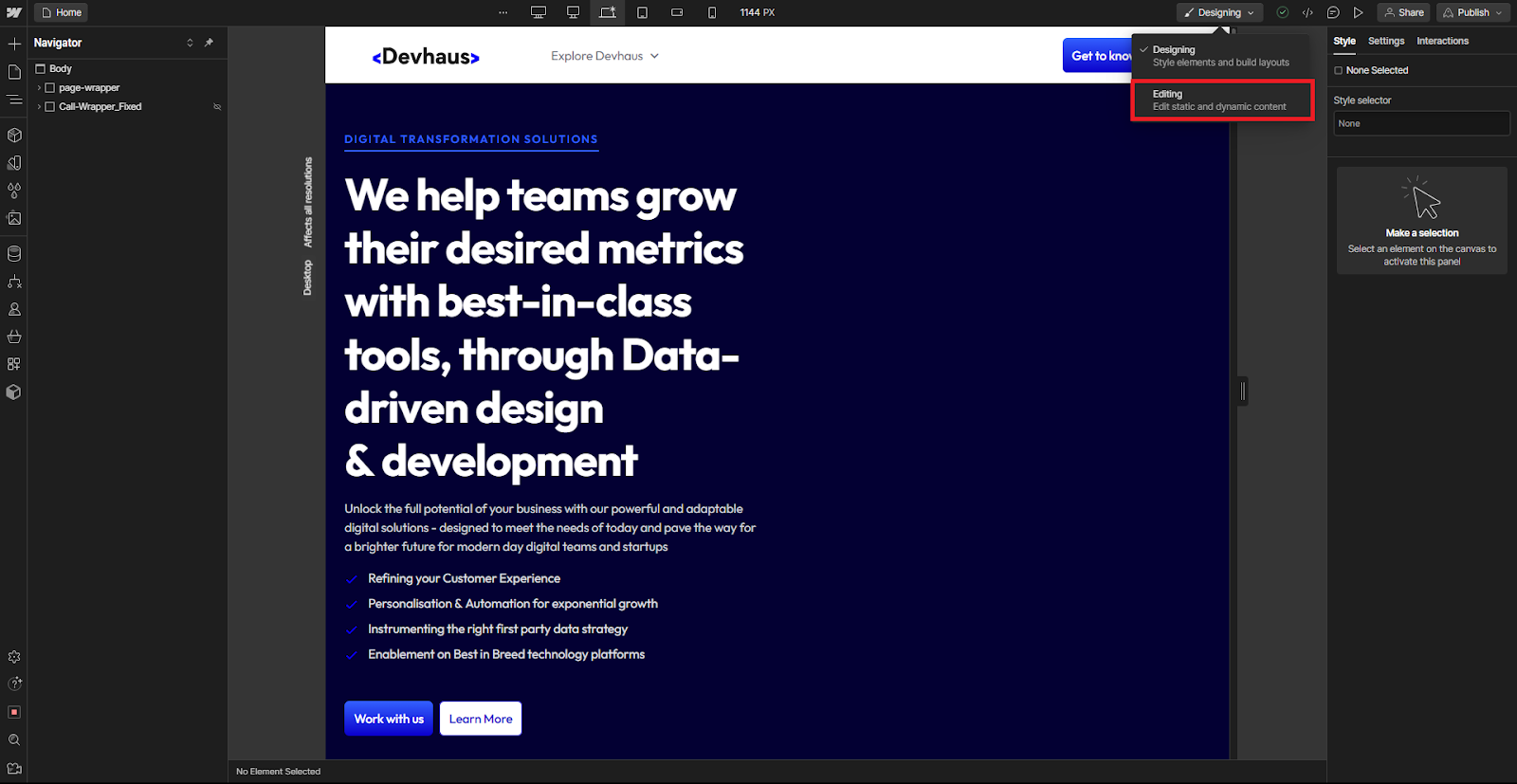
Roles with Designer Access: Designers can enter edit mode by navigating to the site’s Designer and clicking on "Designing" in the top bar. From the dropdown, select "Editing." If another user is already designing, you'll seamlessly transition into edit mode upon entering the Designer.
Once in edit mode, you'll find a suite of tools at your disposal, including the Pages panel, CMS panel, Assets panel, Settings panel, and, for Enterprise sites, the Site Activity log. Furthermore, you'll have access to comments and publishing functionalities if you possess the "Can Publish" permission. Here are some steps to visualise it better for you:
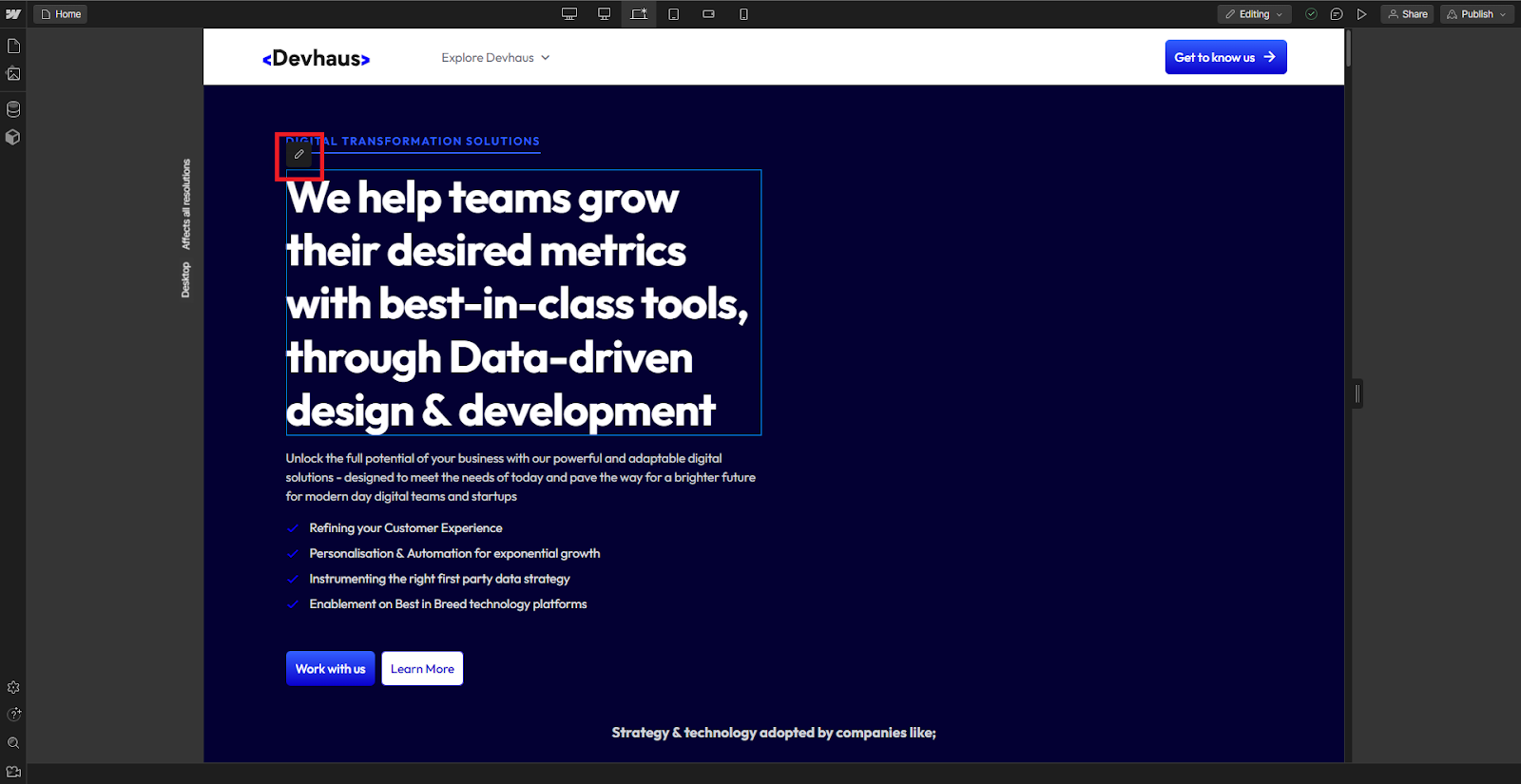
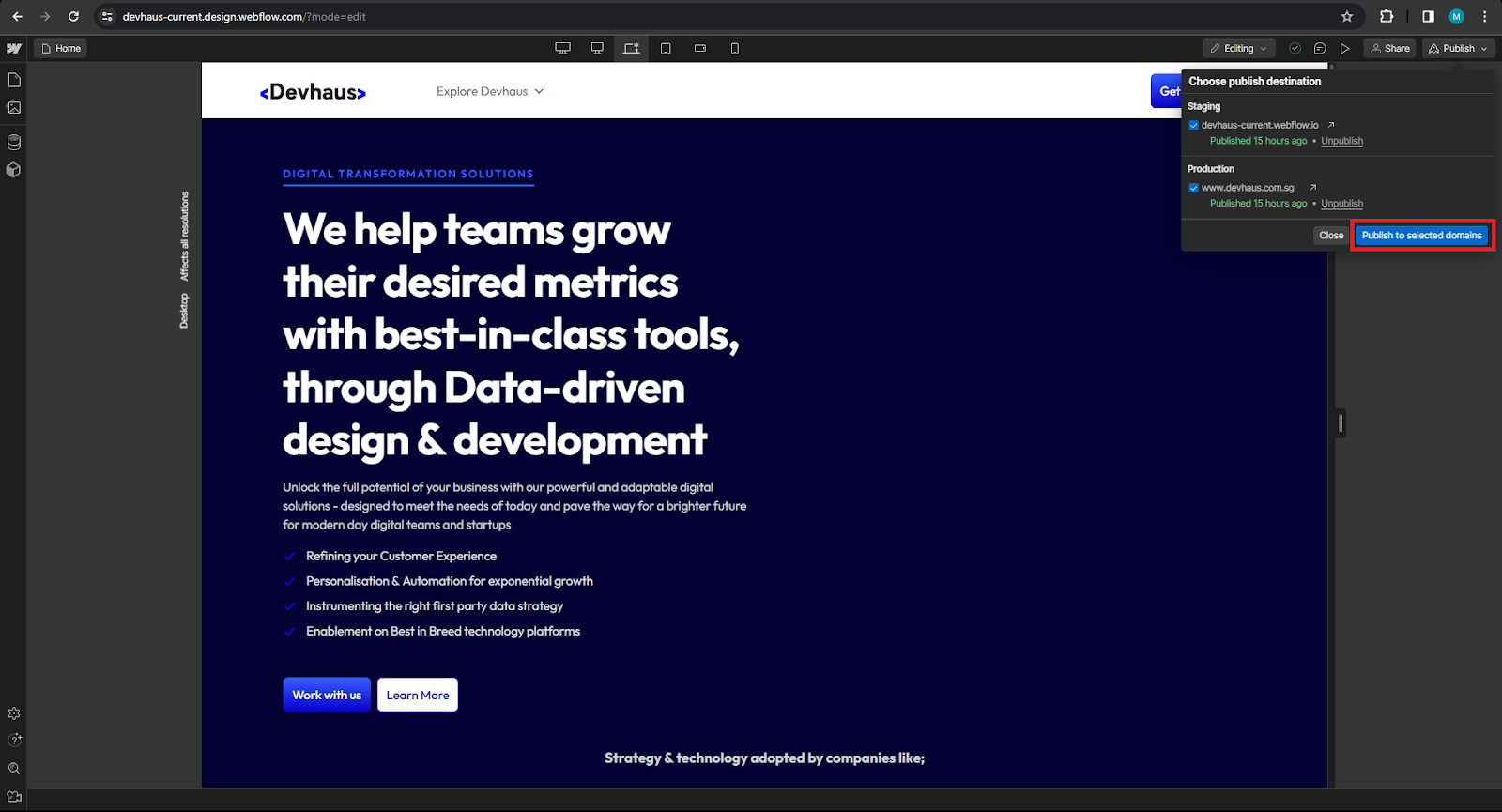
Webflow Editor, a powerful feature within the Webflow platform, facilitates seamless collaboration among team members for editing both static and dynamic site content simultaneously. In Webflow Editor, if multiple individuals are editing the same content simultaneously, the last edits take precedence, underscoring the importance of coordinating editing times with your teammates.
Within the Webflow Editor, you can:
When using Webflow Editor, you'll encounter a simplified version of the Designer interface, featuring fewer panel options. Further details about the Designer’s icons can be found in the Webflow documentation.
Static content, including text, links, and images, is easily editable in Webflow Editor. Hovering over an editable static element reveals a blue outline. Notably, static elements within components are editable only if properties are attached.
Note: Updates to static content within a Collection list (e.g., a button) propagate across all instances in that Collection list.
Webflow Editor enables the editing of existing Collections and elements connected to Collections.
For sites with existing Collections, you can create, manage, edit, delete, and import/export Collection items in Webflow Editor. Access the CMS panel and click on the Collection name to initiate edits.
While editing a Collection item, preview your content on the Collection item’s page. Click “View content on ‘Collection’ page” to navigate to the Collection item’s page. To return to the Collection item, select a dynamic element on the page and click the “CMS” icon or return to the CMS panel.
Important: Saving changes before previewing is crucial to preserve your edits as a draft or staged changes.
Efficiently handling Collection items in the Webflow Editor's CMS panel is a streamlined process that offers a range of tools for enhanced organization and control. Here's a comprehensive guide on managing Collection items with the Webflow Editor:
When you open a Collection from the CMS panel in the Designer, the first 100 collection items are preloaded and visible. If your Collection exceeds 100 items, use the “Next” and “Previous” pagination buttons at the bottom right of the Designer to page through additional items. Even with pagination, the search bar allows you to quickly locate specific items within the open Collection.
Collection item pagination is highlighted in a Collection in the Webflow CMS panel.
To view more Collection fields than those displayed by default, open your Collection and select the “pin” icon in the top right corner of the Designer. This allows you to show or hide fields in the Collection. All Collection fields are pinnable except Image, Multi-Image, Video, and Rich Text fields.
The “pin” icon and its menu highlight available collection fields you can pin to your collection item view.
Open a Collection and type in the search bar to quickly find specific items for editing. Your search will display items with matching values in the Name field.
A search for “flower” displays 2 collection items with matching results in their name fields.
After adding items to your Collection, use the “filter” button to refine the visible items. Filter options include:
If multiple filter options are selected, the results display in an “and” based combination. To apply a filter:
The “filter” button is highlighted in the top action bar of a Collection, and filter options are displayed after pressing the “filter” button.
Once items are added to a Collection, you can sort them based on fields present within your Collection. Different fields support different types of sorting, such as comparison-of-value sorting and presence-of-value sorting. You can also see the sort type for each sortable field by clicking the title of the field and hovering over it.
The “latest first” sort type of a “Created” collection field is shown after hovering over it.
After sorting or refining visible collection items, activate bulk editing by clicking the Select button in the top action bar. Check the box next to the Name field to select items within view. This feature works even for Collections with more than 100 items.
The “Select” button is highlighted in the top action bar, and multiple collection items are highlighted using the checkbox next to the Name field.
Once selected, perform various bulk actions, including Export, Delete, and Update items, allowing you to stage for publish, publish, save as draft, unpublish, or archive selected items.
Click the “Update items” button to choose from various actions in the dropdown menu.
This comprehensive set of tools in Webflow Editor ensures efficient and organized management of Collection items, providing users with the flexibility to navigate, filter, sort, and bulk-edit their content seamlessly.
Dynamic elements (elements connected to Collections) are editable in Webflow Editor. Hovering over an editable dynamic element reveals a purple outline.
Select editable dynamic elements and click on the “CMS” icon to access the Collection field in the Collection item. Edit dynamic content such as text and images.
For websites with Ecommerce enabled through Webflow Editor, easily add, edit, and publish new Ecommerce products, categories, and discounts.
In Webflow Editor, you have the capability to manage specific page settings directly in edit mode, providing a convenient way to control various aspects of your website. Here's a guide to managing page settings and publishing in edit mode:
You can adjust the following page settings in edit mode:
Optimize your page for search engines by customizing the SEO title and meta description. Enhance your website's visibility and ensure it's accurately represented in search engine results.
There are three ways to publish changes directly from edit mode:
Make targeted updates by publishing individual Collection items. This allows you to push specific content changes without affecting the entire site.
When you're ready to make your changes live, publish directly to your production domain. This ensures that the updated content and settings are visible to your audience.
While Webflow Editor provides a robust set of tools for managing content, there are certain limitations in edit mode. You cannot perform the following actions:
Structural edits to main components or component instances are restricted in edit mode.
CMS settings and the creation of new CMS Collections are restricted in edit mode.
Understanding these limitations ensures that you use the appropriate tools in the Webflow platform for different aspects of website management, providing a seamless and efficient workflow.
If you're a company operating in Singapore, there are a couple of government subsidies that you could look into to help finance and subsidise your next strategy project - including refining your entire digital experience and your CMS.
The Singapore government has a lot of incentives and subsidies for companies to grow.
We'd strongly advise you to look through the various grants available for Singapore companies to explore to help you get your project subsidised.
If you'd like to explore all the available grants, feel free to visit our Singapore grants navigator here
We hope this article has given you a better understanding of customer data platforms and why they're so important to marketers. If you're looking for more information on how CDPs can help your business, feel free to contact us today!
Looking forward to catching up with you soon!
Find the right engagement fit for your current need(s)
Go to Market
Consulting
Validate ideas with market research, strategic planning and prototyping. Ideal for exploring new concepts.
Martech
Implementation
Launch Low-code MVP or Custom Interactive websites with user-focused design. Perfect for quick market entry.
Growth & Marketing
Campaign Experimentation
Boost growth with scalable systems and marketing automation. Suited for advanced analytics and more.
For teams with a bigger appetite for growth
Martech
Transformation
Transform with system modernization and integration. Best for comprehensive digital change.
Martech
Growth Operations
Optimize performance and reduce technical debt. Ideal for efficiency and fine-tuning.

Enterprise Singapore sets the rules and can change them. In general, you need all three of these before your project is assessed.

The grant is run by Enterprise Singapore for companies registered and operating here.

You need to have sufficient funds available to pay for the entire project upfront.

You need a defined project with real deliverables, dates, and outcomes.














We can't wait to hear all about your game-changing ideas. Spill the tea!

Be the first to know on further updates on Growth contents for your organisation, don't miss out on our sneak peaks and exclusive community contents!