
Martech
Growth Operations
Expand
Optimize performance and reduce technical debt. Ideal for efficiency and fine-tuning.


Check four things before trusting an inherited Google Analytics 4 setup: who owns the account, whether each conversion is counted exactly once, whether campaign sources arrive intact, and whether totals match your sales or payment records. Fix those first.
Check four things before trusting an inherited Google Analytics 4 setup: who owns the account, whether each conversion is counted exactly once, whether campaign sources arrive intact, and whether totals match your sales or payment records. Fix those first.
Google Analytics 4, or GA4, is Google's current analytics product. If you came here looking for a GA4 migration, there is nothing left to migrate. Standard Universal Analytics properties stopped processing data on 1 July 2023, and a one-time extension for some paid 360 properties ended on 1 July 2024. The useful work now is checking the Google Analytics 4 setup that replaced it. Many of those setups were built in a hurry around the 2023 cut-over.
This page is for a growth leader who has inherited a property that someone else built and now has to defend a budget with its numbers. Perhaps you have just joined, or the board has started asking which channels work. Run the four checks in order. If a check fails, stop there and fix it before you move on.
Tracking changes hands many times. A former employee sets up the property. An agency adds campaign tracking. A developer adds a tag while working on something else. Each change makes sense on the day, but nobody writes down what counts as a conversion or why.
Site changes break tracking without warning. A new checkout, a booking tool on another domain or a new consent banner can each stop data arriving, or make it arrive twice, and no alert fires. This is how attribution becomes unclear: the reports still fill up, but nobody can say which channel earned which sale. Before you use these numbers to shape marketing strategy, confirm that they hold.
Start with access, because nobody can fix what nobody can open.
Open the property's user list. Google Analytics 4 has five roles. The top one, Administrator, has full control, including adding and removing users. Look for three things:
Next, list the tools linked to the property, such as your ad accounts and Google Search Console. The Search Console link sits under Admin, then Product links, then Search Console Links. It puts search data next to on-site behaviour, which is useful if it is connected. If it is not, add it to your list.
Finally, check how long the property keeps detailed data. On a standard property, the data retention setting is either 2 months or 14 months. The setting limits explorations and funnel reports, not the standard reports. If it is set to 2 months, you cannot explore behaviour from earlier than that, however long the property has run.
A conversion is an action you count as success, such as a form sent, a booking made or a purchase completed. In Google Analytics 4, Google now calls these actions "key events". It keeps the word "conversion" for the actions used to measure ad campaigns. A key event can be imported into Google Ads as a conversion, so a double count in analytics can carry into your ad figures too.
List every key event. For each one, ask whether it still matches what the business calls a lead or a sale. Then look for the usual causes of double counting:
Complete each key event once yourself, and watch it arrive. DebugView shows the events Analytics collects from a user in real time, and the Realtime report shows activity on your site as it happens. One action should produce one key event. If you see two, or none, you have found the fault.
UTM tags are labels added to the end of a link. They tell your analytics which campaign, source and medium sent the visitor. If the labels are missing or lost, the visit still counts, but nobody can say which campaign sent it.
Watch for a growing share of visits that Google Analytics 4 cannot place in any channel. In Google Analytics 4, Unassigned is the label used when no channel rule matches the data. A rising Unassigned figure is not proof of a fault, but it is a reason to investigate.
Two settings deal with the cross-domain problem. Both sit in the web data stream's tag settings. Configure your domains links journeys that cross from one of your domains to another. List unwanted referrals stops a payment page from claiming credit for your own visitors. Check that someone has filled in both.
Take one recent month. Compare the key event count in Google Analytics 4 with the matching count in the system where your sales team records customers, known as a customer relationship management system, or CRM. If sales close elsewhere, use your booking or payment system instead.
Expect a gap. Consent choices, ad blockers and browser limits mean analytics never sees every visitor. Your sales system records every deal. The two will not match exactly.
What matters is whether the gap is stable and explainable. If the gap stays much the same from month to month and someone can say why, the tracking is probably doing its job. If it jumps around, or nobody can explain it, the tracking is wrong, not the business.
This check also forces a decision: which system is the source of truth for revenue? Analytics is rarely the right answer. For how a CRM and a customer data platform divide that job, see CRM vs CDP.
First-party data is the data you collect on your own site and app, with the visitor's consent. Google Analytics 4 is one source of it. It tells you how people behave on your site. It is not the system of record for customers or revenue.
Two options come up once the four checks pass.
BigQuery is Google's data warehouse, a database built to hold and join large volumes of data from many tools. Standard properties can export raw event data to BigQuery, with a daily export limit of 1 million events. You can start on a free BigQuery sandbox, but exports beyond its limits incur charges.
It is worth it when you need to join site behaviour with sales data, for example to see which campaigns bring customers who stay, not just visitors who convert once.
Server-side tagging sends tracking data through a server you control before it reaches your analytics and ad tools. In Google Tag Manager, this processing runs in a server container rather than in the visitor's browser.
It is worth it when you need more control over what data leaves your site and where it goes. It also adds a system that someone must run, so it comes after the basics, not before.
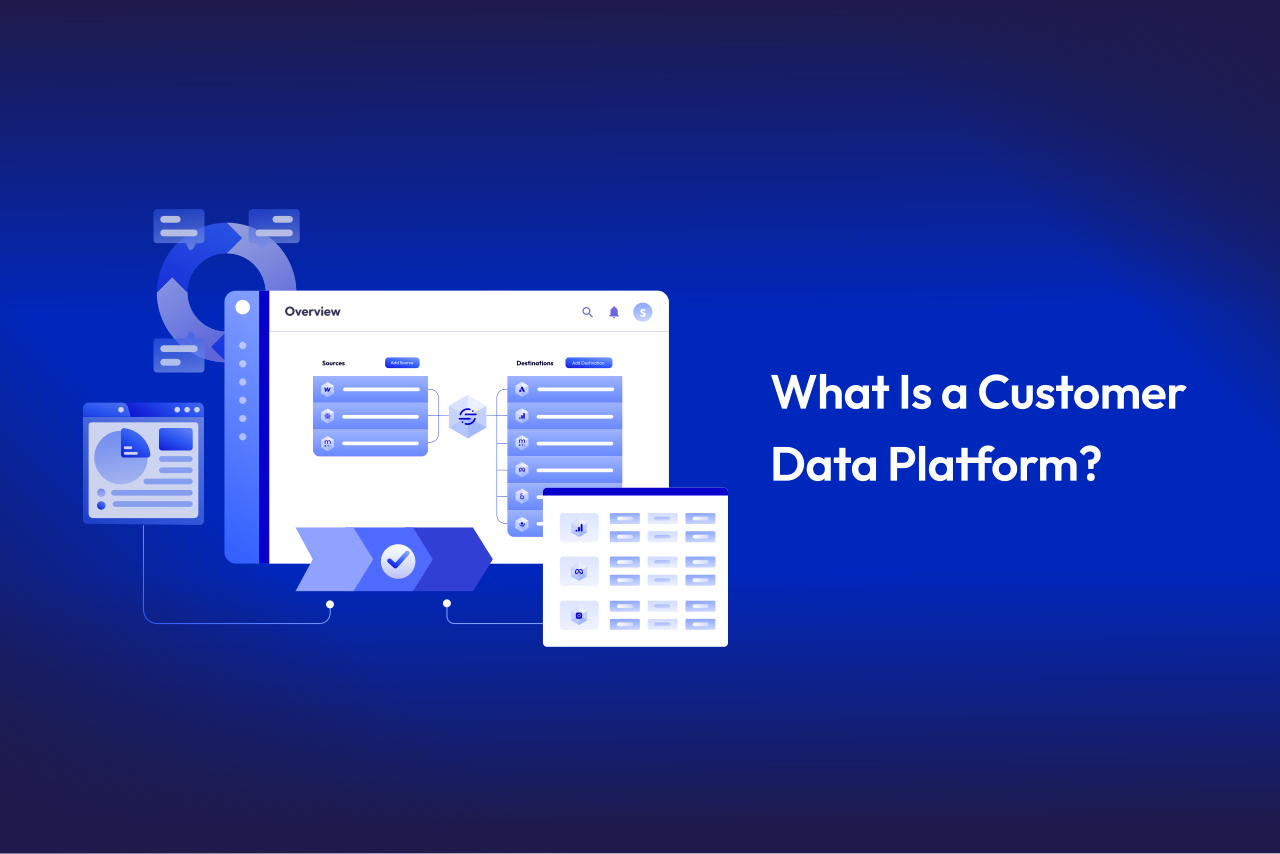
If you are deciding how analytics fits with your other customer data, start with what a customer data platform is, then how it differs from a CRM.
Both are fair objections. You may not have time to run an audit yourself, and you may already pay an agency to look after tracking.
The four checks work either way. They run in a fixed order, and you can stop at the first one that fails. If an agency or a former colleague built the setup, turn the checks into four questions and send them today:
A clear answer to all four suggests the setup is sound. A vague answer to any one shows you where to look first.
If one check fails and you want it fixed and proven before you commit to more, a Sandbox is a one-week paid proof on a single problem, at a fixed S$3,500. We take one problem, such as one conversion, and fix it so it runs live in your own tools within a week. It needs about two hours of your time. Every code repository and every credential is yours, and there is no follow-on obligation. If you go on to a Blueprint within 30 days, the Sandbox fee credits in full towards it.
If several checks fail at once, the question is no longer one fix but the whole tracking design. A Blueprint is a paid diagnosis that ends with a costed plan. The Lite size covers one engine and one question, and costs S$8,000 to S$12,000 over 1 to 2 weeks, paid 100% upfront. You leave with the architecture, the sequence and the number: a fixed build price, not an estimate that grows.
Find the right engagement fit for your current need(s)
Go to Market
Consulting
Validate ideas with market research, strategic planning and prototyping. Ideal for exploring new concepts.
Martech
Implementation
Launch Low-code MVP or Custom Interactive websites with user-focused design. Perfect for quick market entry.
Growth & Marketing
Campaign Experimentation
Boost growth with scalable systems and marketing automation. Suited for advanced analytics and more.
For teams with a bigger appetite for growth
Martech
Transformation
Transform with system modernization and integration. Best for comprehensive digital change.
Martech
Growth Operations
Optimize performance and reduce technical debt. Ideal for efficiency and fine-tuning.

Enterprise Singapore sets the rules and can change them. In general, you need all three of these before your project is assessed.

The grant is run by Enterprise Singapore for companies registered and operating here.

You need to have sufficient funds available to pay for the entire project upfront.

You need a defined project with real deliverables, dates, and outcomes.














We can't wait to hear all about your game-changing ideas. Spill the tea!

Be the first to know on further updates on Growth contents for your organisation, don't miss out on our sneak peaks and exclusive community contents!