How do I give my staff access to the Business Grants Portal?
How do I give my staff access to the Business Grants Portal?
Grant
Haykal
12 Oct 2026
8
min read
Quick answer
Your company's Corppass Admin gives staff access by assigning the ApplyGov e-Service with one of three portal roles: Viewer, to see applications; Preparer, to create and submit them; or Acceptor, who can also accept the Letter of Offer.
Key takeaways
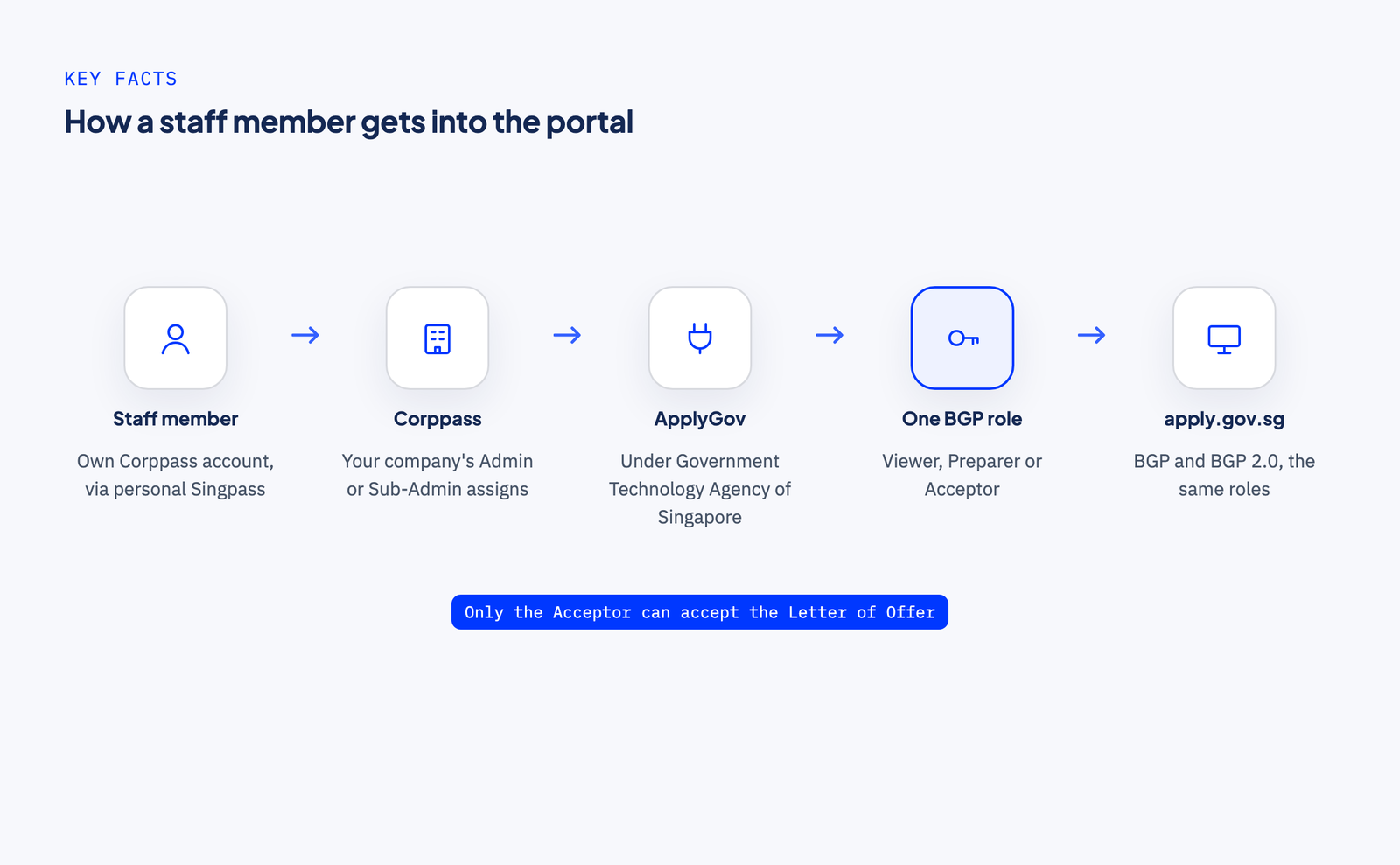
Your company's Corppass Admin, or a Sub-Admin, gives staff access to the Business Grants Portal by assigning the ApplyGov e-Service in Corppass.
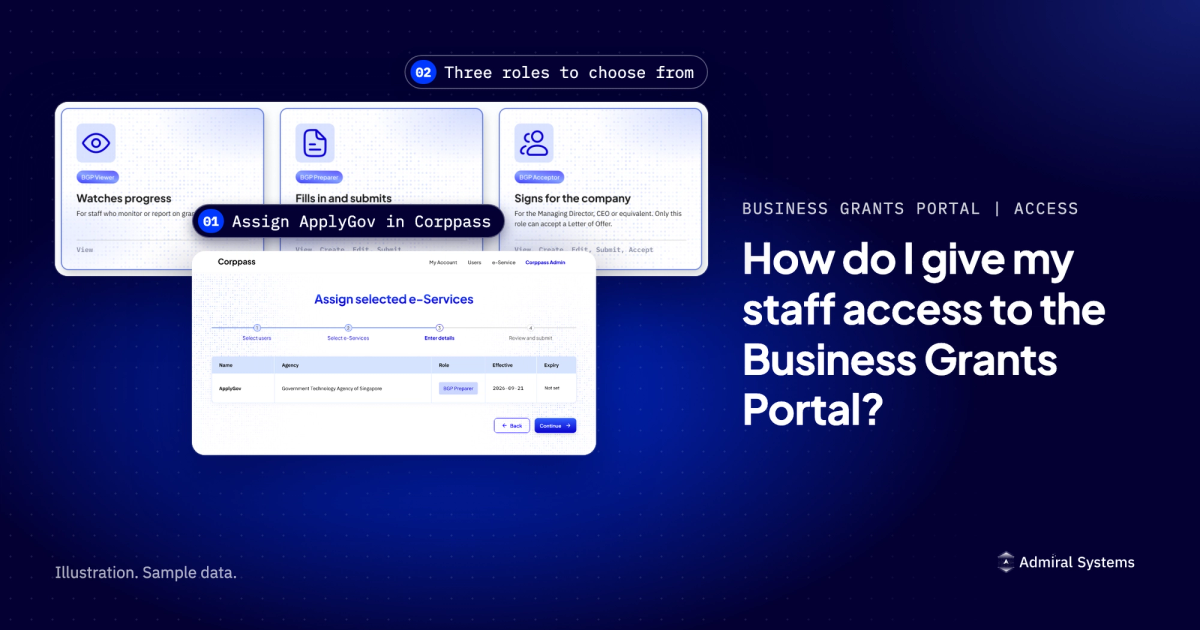
The Business Grants Portal (BGP) has three roles: BGP Viewer can view the company's grant applications, BGP Preparer can also create, edit and submit them, and BGP Acceptor can also accept the Letter of Offer.
Only the Acceptor can accept the Letter of Offer, and the official guidance says that role should go to the Managing Director, Chief Executive Officer or equivalent.
The same roles work on both log-in options at apply.gov.sg, BGP and BGP 2.0, so one role assignment covers both.
The short answer
Your company's Corppass Admin gives staff access by assigning the ApplyGov e-Service with one of three portal roles: Viewer, to see applications; Preparer, to create and submit them; or Acceptor, who can also accept the Letter of Offer.
[@portabletext/react] Unknown block type "callout", specify a component for it in the `components.types` prop
Where roles are assigned: in Corppass, the login your company uses for government digital services. Your company's Corppass Admin or a Corppass Sub-Admin assigns them.
The e-Service to select: "ApplyGov", under "Government Technology Agency of Singapore". An e-Service is Corppass's name for one government digital service.
The three roles: BGP Viewer, BGP Preparer and BGP Acceptor.
Who can accept the Letter of Offer: the Acceptor only.
Which portal the roles work on: both BGP and BGP 2.0, with the same roles.
What each person needs first: their own Corppass account, verified with their personal Singpass login.
One assignment in Corppass gives a staff member a portal role on both log-ins.
The three roles
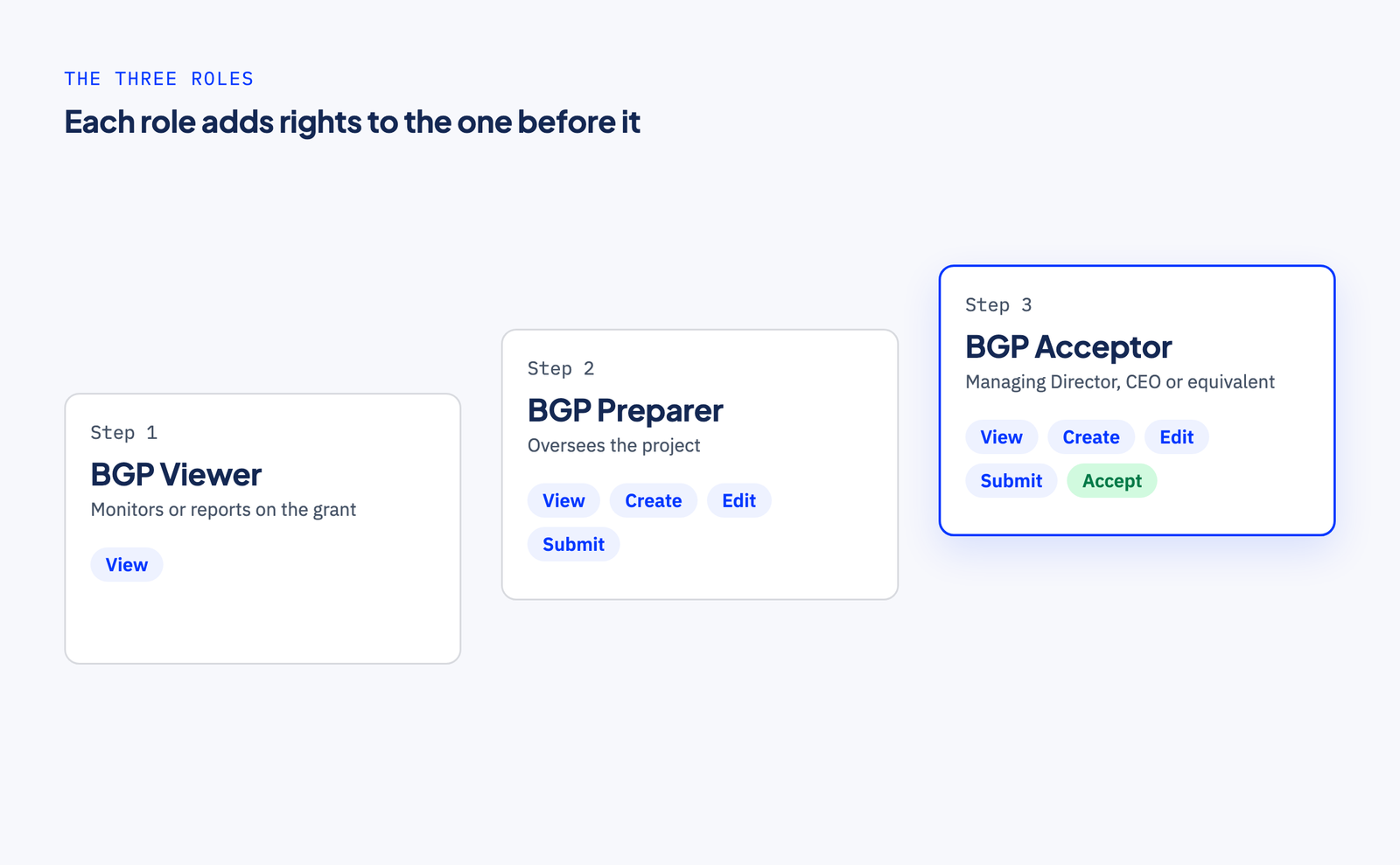
The Business Grants Portal has three roles, and each one adds rights to the one before it. The official role table describes them as follows.
Each role adds rights to the one before it.
BGP Viewer
What it can do: view the details of all the company's grant applications.
Actions: View.
BGP Preparer
What it can do: view, edit and submit all the company's grant applications. A Preparer has to make declarations on behalf of the company.
Actions: View, Create, Edit, Submit.
BGP Acceptor
What it can do: everything the Viewer and Preparer can do. The Acceptor must also have authority to accept the terms and conditions of the Letter of Offer on behalf of the company.
Actions: View, Create, Edit, Submit, Accept.
After the company accepts a grant, only Preparers and Acceptors can create and submit forms such as claims, change requests and cash advance requests. Viewers are not authorised to create or submit them.
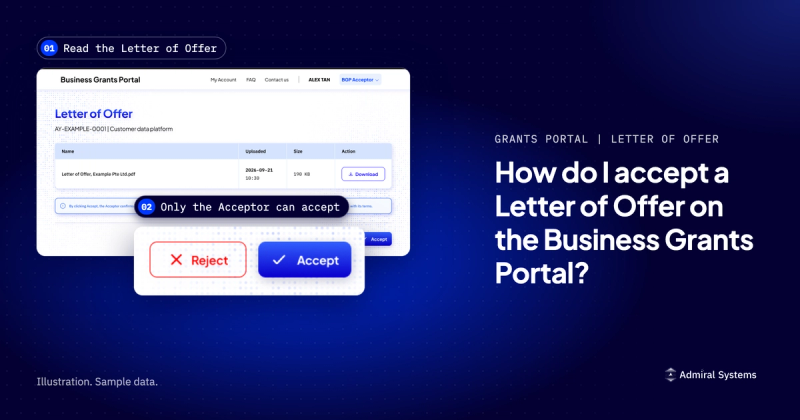
Only the Acceptor can accept the Letter of Offer, the document that sets out the terms of an approved grant. Viewers and Preparers are not authorised to accept it.
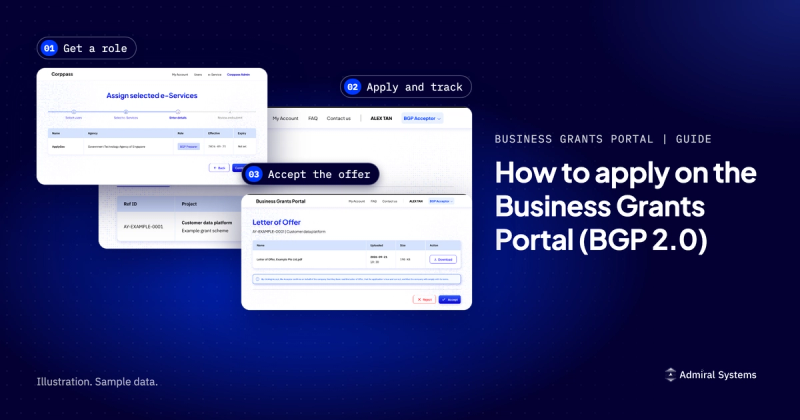
One login, two portals. The Business Grants Portal page at apply.gov.sg asks you to "Select portal to log in" and offers two choices: BGP and BGP 2.0. The roles are the same on both, so one role assignment gives access to both portals. The official FAQ says the Business Grants Portal "will be moving to a new system (BGP 2.0) by end-2026". Our guide to applying on the Business Grants Portal covers the application itself.
Who gets which role
The official role table also says who each role should go to.
The Managing Director, Chief Executive Officer or equivalent
Role: BGP Acceptor.
Why: the official guidance says this role "should be assigned to the company's Managing Director, Chief Executive Officer or equivalent". The Acceptor must have authority to accept the Letter of Offer on behalf of the company.
The person who runs the project
Role: BGP Preparer.
Why: the role should go to employees "overseeing the project and acting as the point of contact for the grant".
Anyone who monitors or reports on the grant
Role: BGP Viewer.
Why: the role should go to employees "who need to monitor or report on grant information". Someone in finance is one example.
A few points catch companies out.
A Registered Officer gets no role automatically. A Registered Officer is an officer recorded for the company with the company registry. The official guidance says a Registered Officer who wants a BGP role "needs to be assigned either as a CorpPass Admin or CorpPass User".
The Managing Director may already hold Preparer. If you are the Managing Director, Chief Executive Officer or equivalent and hold the Preparer role, your Corppass Admin can assign you the Acceptor role instead.
Staff with a foreign ID need an SFA. A staff member who uses a foreign identity document needs a Singpass Foreign user Account (SFA), which is a Singpass login for foreign users, to transact on behalf of the company.
Different access means separate assignments. If different people need different roles, your Corppass Admin assigns each person individually.
The Preparer is the person "overseeing the project", so if you cannot yet name that person, the project itself is not yet defined.
How your Corppass Admin assigns ApplyGov
Why this is work your company does itself
You do not need outside help for this step. The official guidance gives every role to someone inside the company: employees, and the Managing Director, Chief Executive Officer or equivalent. A Preparer makes declarations on behalf of the company, and an Acceptor accepts the grant's terms for it. Those are your company's commitments, so your own Corppass Admin sets up the access with the steps below.
Outside help, if you want it at all, earns its place later, when you shape the project.
The e-Service is now ApplyGov
Older guides name a different e-Service. According to the BGP 2.0 FAQ, the e-Service was called "BGP" and was renamed ApplyGov from 4 November 2024. The FAQ says the change "does not affect existing roles and access". Search for ApplyGov.
Before you start
Corppass Admin: your company needs one. A Corppass Sub-Admin can also assign access, but a Sub-Admin with restricted access can only assign access within their own assignment profile. If your company has no Admin, see "The company has no Corppass Admin" below.
Staff account: each staff member needs their own Corppass account. The Admin creates it with the person's NRIC/FIN (the number on their Singapore identity card, or their foreign identification number) and their corporate email address. The person then activates the account from an email that Corppass sends them.
Singpass: every Corppass user verifies their identity with their Singpass login before they use government digital services.
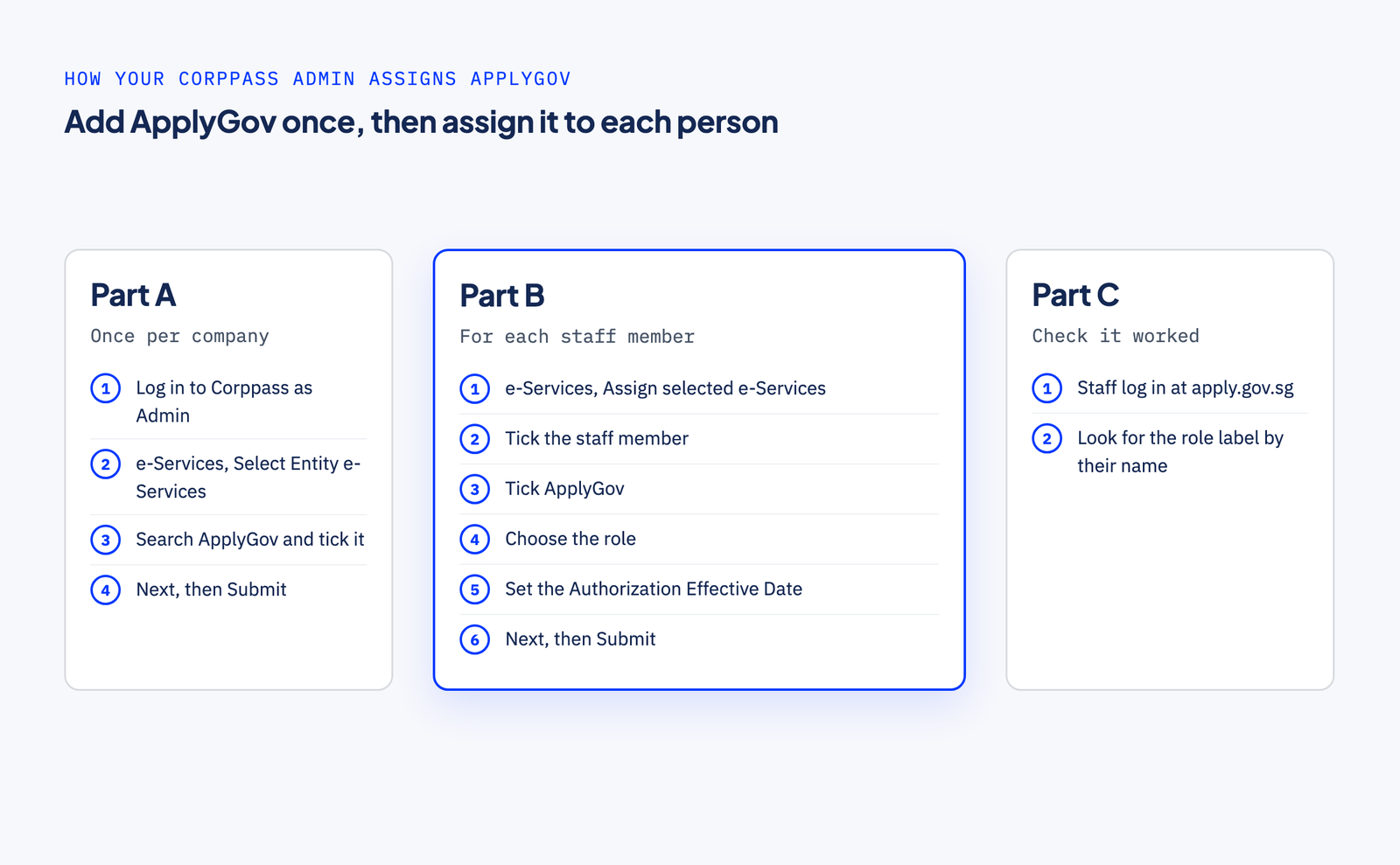
Add ApplyGov once, then assign it to each person.
Part A: add ApplyGov for your company (once)
Log in to Corppass at www.corppass.gov.sg as the Corppass Admin or a Sub-Admin.
Go to 'e-Services', then 'Select Entity e-Services'.
Type "ApplyGov" in the search bar to the right, next to 'filter'.
Tick the box on the left of "GOVERNMENT TECHNOLOGY AGENCY OF SINGAPORE - ApplyGov", then press 'Next'. If there is no checkbox, ApplyGov is already added for your company: go to Part B.
Press 'Next' and 'Submit'.
Press 'Return to Homepage'.
Part B: assign ApplyGov to a staff member
Go to 'e-Services', then 'Assign selected e-Services'.
Tick the box next to the staff member's name and press 'Next'.
Type "ApplyGov" in the search bar, tick "GOVERNMENT TECHNOLOGY AGENCY OF SINGAPORE - ApplyGov", then press 'Next'.
Select the role: BGP Viewer, BGP Preparer or BGP Acceptor.
Set the "Authorization Effective Date". It is required, and it can be today. Leave the "Authorization Expiry Date" blank if the access should last indefinitely.
Check the request, then press 'Next' and 'Submit'.
Part C: check it worked
Ask the staff member to log in through the Business Grants Portal page at apply.gov.sg and look for the role label next to their account name, in the masthead at the top of the page. In Corppass, they can also go to My Account > View My Profile > Assigned e-Services.
Roles sorted? Shape the project next. The Grant Project Planner turns a few short answers into a draft project brief in about three minutes. It is free, with no documents or login.
Common errors and how to fix them
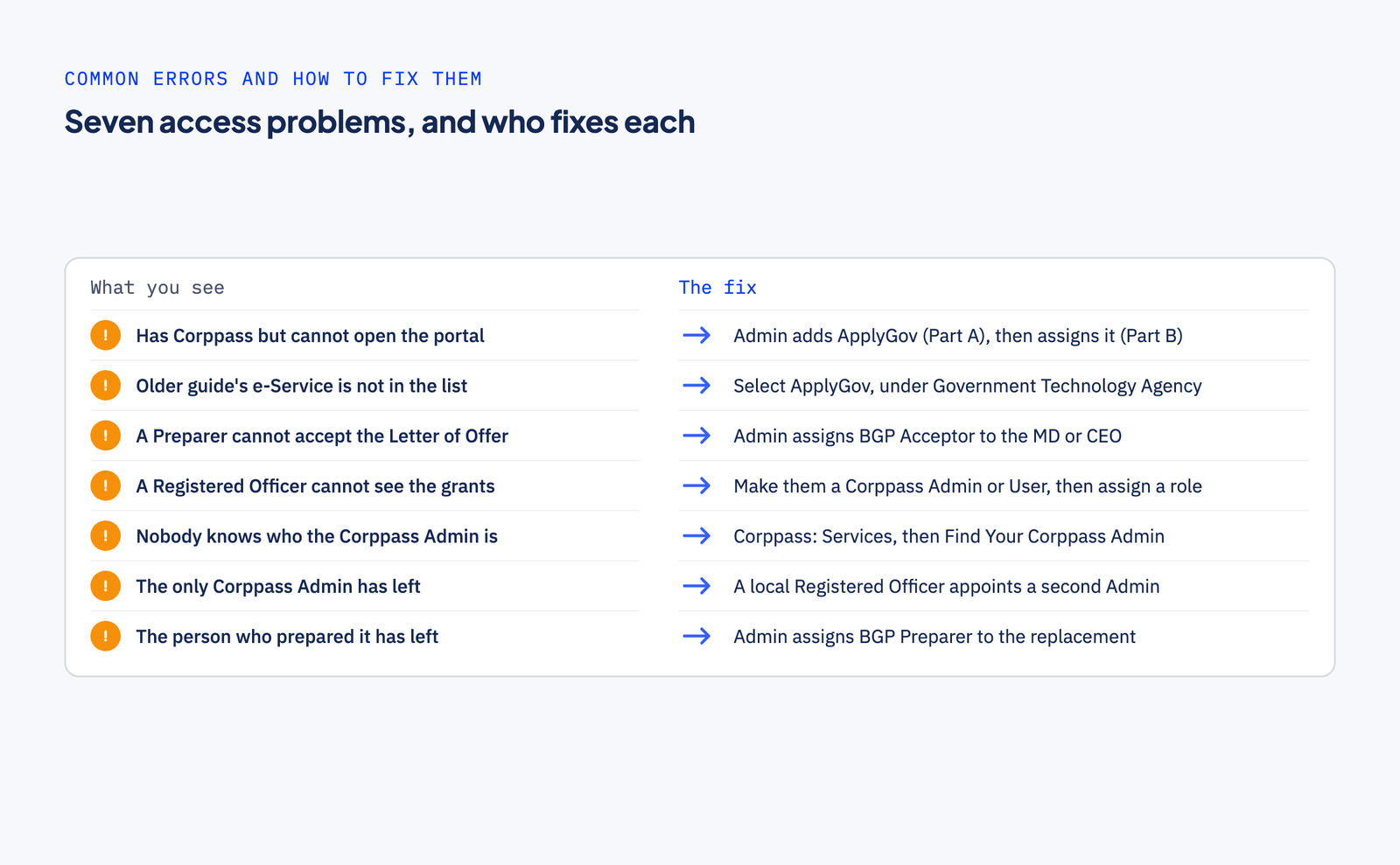
Most access problems are fixed by your Corppass Admin, in Corppass.
A staff member has Corppass but cannot open the portal
Possible cause: ApplyGov has not been added for the company, it has not been assigned to them, or their authorisation has expired.
Fix: the Admin adds ApplyGov for the company (Part A), then assigns it to the staff member (Part B). If the authorisation has expired, the staff member asks the Corppass Admin to authorise them again. Clearing the browser cache and cookies can also help.
Official source: Corppass FAQ on ask.gov.sg.
The e-Service named in an older guide is not in the list
Possible cause: the e-Service now has a different name.
Fix: select "ApplyGov" under "Government Technology Agency of Singapore".
Official source: BGP 2.0 FAQ on gowhere.gov.sg.
A Preparer cannot accept the Letter of Offer
Possible cause: only the Acceptor can accept it.
Fix: the Corppass Admin assigns BGP Acceptor to the Managing Director, Chief Executive Officer or equivalent.
Official source: BGP 2.0 FAQ on gowhere.gov.sg.
A new Chief Executive Officer or Managing Director cannot accept the Letter of Offer
Possible cause: the new Chief Executive Officer or Managing Director has not been given the Acceptor role.
Fix: the Corppass Admin assigns them the Acceptor role, in Corppass.
Official source: BGP 2.0 FAQ on gowhere.gov.sg.
A Registered Officer cannot see the company's grants
Possible cause: a Registered Officer gets no BGP role automatically.
Fix: make them a Corppass Admin or Corppass User, then assign them a BGP role.
Official source: GoBusiness Business Grants Portal FAQ, and the Corppass FAQ on ask.gov.sg.
Staff do not know who the Corppass Admin is
Possible cause: nobody in the company has a record of who holds the role.
Fix: on the Corppass site, click 'Services' > 'Find Your Corppass Admin', log in with Singpass, enter the company's UEN (its Unique Entity Number), and press 'Search'.
Official source: BGP 2.0 FAQ on gowhere.gov.sg.
The company has no Corppass Admin
Possible cause: nobody has been appointed.
Fix: apply to be the Corppass Admin. You need a Singapore NRIC or FIN, and the email address of one of the company's Registered Officers. A Registered Officer approves the application online. If you are a Registered Officer yourself, the Corppass FAQ says your application is automatically approved. If the company was newly registered, wait at least one day before you apply.
Official source: Corppass FAQ on ask.gov.sg.
The only Corppass Admin has left
Possible cause: the departed Admin still holds the company's only Admin account.
Fix: a local Registered Officer can appoint a second Admin, who then ends the departed Admin's account, or use their own Singpass to remove the departed Admin directly. Keep at least one Admin at all times. If the company has no Corppass Admin for 30 days, the Corppass FAQ says "your entity will be suspended".
Official source: Corppass FAQ on ask.gov.sg.
A user with "default access to all e-Services" has the wrong role
Possible cause: the default roles may not be the ones the user needs.
Fix: assign the role they need. Any role you assign after the default access option replaces the default roles.
Official source: Corppass FAQ on ask.gov.sg.
"Invalid page" after clicking an email link on BGP 2.0
Possible cause: the closed invitation in the email was removed or has expired.
Fix: contact the agency named in the email.
Official source: BGP 2.0 FAQ on gowhere.gov.sg.
The staff member who prepared the application has left
Possible cause: no remaining staff member holds the Preparer or Acceptor role.
Fix: the Corppass Admin assigns BGP Preparer to the replacement. Preparers "can view, edit and submit all the company's grant applications", so the replacement can take over the application.
Official source: the role table in the BGP 2.0 FAQ on gowhere.gov.sg.
Once the right people hold the right roles, the portal is ready for you. What it cannot give you is the project itself: what you will deliver, by when, at what cost and with what result. That is the part worth settling before anyone logs in.
Plan it free first. Our Grant Project Planner asks a few short questions about your business and the bottleneck you want to fix, then gives you a draft project brief on screen in about three minutes. No documents, no login.
Want us alongside you? If the project spans several systems or vendors, or you would rather not run the project alone, tell us about it and check if we're a fit. We look up your company before we reply, and we reply within one working day, Singapore time. If you know something is wrong, but not yet what to fix, a Blueprint is a paid diagnosis that ends with a costed plan.
Grant outcomes are decided only by the agency that runs the grant. We cannot guarantee approval.
Admiral Systems is not associated with any government agency, and this page is our understanding of the official guidance, not professional advice. For the official answer, read the Business Grants Portal FAQ.
Frequently asked questions
Only the Acceptor can accept the Letter of Offer. Viewers and Preparers are not authorised to accept it. Your Corppass Admin assigns the BGP Acceptor role, in Corppass, to the Managing Director, Chief Executive Officer or equivalent.
On the Corppass site, click 'Services' > 'Find Your Corppass Admin', log in with Singpass, enter your company's UEN (its Unique Entity Number) and press 'Search'.
A local Registered Officer can appoint a second Admin, who then ends the departed Admin's account, or use their own Singpass to remove the departed Admin directly. Keep at least one Admin at all times. If the company has no Corppass Admin for 30 days, the Corppass FAQ says "your entity will be suspended".
Select "ApplyGov" under "Government Technology Agency of Singapore". The e-Service now has a different name, and the official FAQ says the change does not affect existing roles and access.
No. A Registered Officer who wants a portal role must first be made a Corppass Admin or Corppass User. Your Corppass Admin then assigns them a BGP role.
Important Notice: Admiral Systems is the new brand identity of Devhaus Pte. Ltd. (UEN: 202008696G). While we were previously known as Devhaus, please note that we are no longer affiliated with the domain devhaus.com.sg. For authentic Admiral Systems services, you're in the right place.